Leave Your Message

How to Choose the Right Power Supply?

Choosing a Power Supply is not just a matter of matching the wattage printed on a graphics card. The unit must also support your processor, graphics card, storage devices, and planned upgrades. Connector compatibility matters too. A loose estimate can leave too little headroom when a graphics card briefly draws more power under load.

Efficiency deserves attention, but it needs context. Lawrence Berkeley National Laboratory’s 2024 United States Data Center Energy Usage Report estimates that U.S. data centers used 176 terawatt-hours of electricity in 2023. It projects 325 to 580 terawatt-hours by 2028. Those figures describe data centers, not home computers, but they show why wasted energy matters at scale. Certification programs such as 80 PLUS provide efficiency results at specified loads. They do not, by themselves, prove that a unit is quiet, durable, or suitable for every build.

Wattage is an easy shortcut. It is also incomplete. Check the manufacturer’s recommended power, the unit’s connectors, its protections, and its efficiency certification. Consider the case size and noise level, too. A compact case may restrict your choices; a powerful graphics card may need newer connectors and extra headroom. The right choice should fit your actual parts, not an imagined future system. Small details count. This guide explains how to compare those details and choose a Power Supply with sound evidence, rather than relying on a single number.
How to Choose the Right Power Supply?

Identify the Power Supply’s Intended Use

How to Choose the Right Power Supply?

Identify the Power Supply’s Intended Use

Start with the equipment you need to power, not a wattage figure on a box. Write down its required voltage, current, connector type, and whether it needs AC or DC input. A desktop computer may need several output voltages, while a small router may use one fixed DC output. Portable equipment adds another question: will the supply run from a wall outlet, a battery, or both? These uses call for different designs.

Not the same job.

Consider how the equipment behaves during normal use and at startup. Motors, pumps, and some audio equipment can briefly draw more current than they use steadily. Check the device’s specifications for peak demand, then choose a supply rated to handle it without running at its limit all day. Also consider where it will sit: a warm, dusty enclosure may need better cooling and a suitable enclosure rating.

I still find it easy to focus too much on the numbers and overlook the setting. A supply that fits the load but overheats in its location is a poor match.

Small details matter.

Calculate the Required Wattage and Power Capacity

To calculate the wattage you need, add the expected power draw of the processor, graphics card, motherboard, memory, storage drives, and fans. Use component specifications as a starting point, but treat the result as an estimate. Real workloads vary, and brief power spikes can exceed typical consumption. Peak loads matter.

A calculator can help, but check the power supply’s continuous output rating and its 12-volt capacity. The processor and graphics card rely heavily on this output. Then allow roughly 20 to 30 percent of headroom for spikes, upgrades, or quieter operation under load. The right margin depends on your parts and use; it is not a magic rule. Check the label. A higher wattage rating does not make a computer draw that full amount—the system takes what it needs. Also, wall power will be somewhat higher because conversion is not perfectly efficient. It is easy to overestimate, especially when adding every component’s maximum figure, so compare your estimate with the manufacturers’ recommended capacity before buying. My first calculation is rarely exact. That is a reason to verify, not to guess wildly.

Compare Efficiency Ratings and Certification Standards

A power-supply efficiency label tells you how much input electricity reaches the computer as usable DC power. The rest becomes heat. The 80 PLUS program’s published 115-volt test criteria set Gold certification at 87% efficiency under 20% and 100% loads, and 90% at 50% load. Titanium requires 90%, 94%, and 90% at 10%, 50%, and 100% load. These figures come from specified test points, not every moment of real use. Check the test voltage and load conditions before comparing labels.

Certification helps, but it is not a complete verdict. A desktop that idles for hours may spend little time near the 50% test point. The U.S. Environmental Protection Agency’s ENERGY STAR computer specifications also assess whole-system energy use, which is a useful reminder that a highly rated supply cannot compensate for inefficient components or poor settings. Look for a certification listing and test documentation, then compare the model’s efficiency curve with your expected load.

Still, ratings can feel cleaner than real life. A small, overlooked detail: room temperature affects cooling, and fan noise may rise when heat builds inside a cramped case.

Check Connector Types, Form Factor, and Compatibility

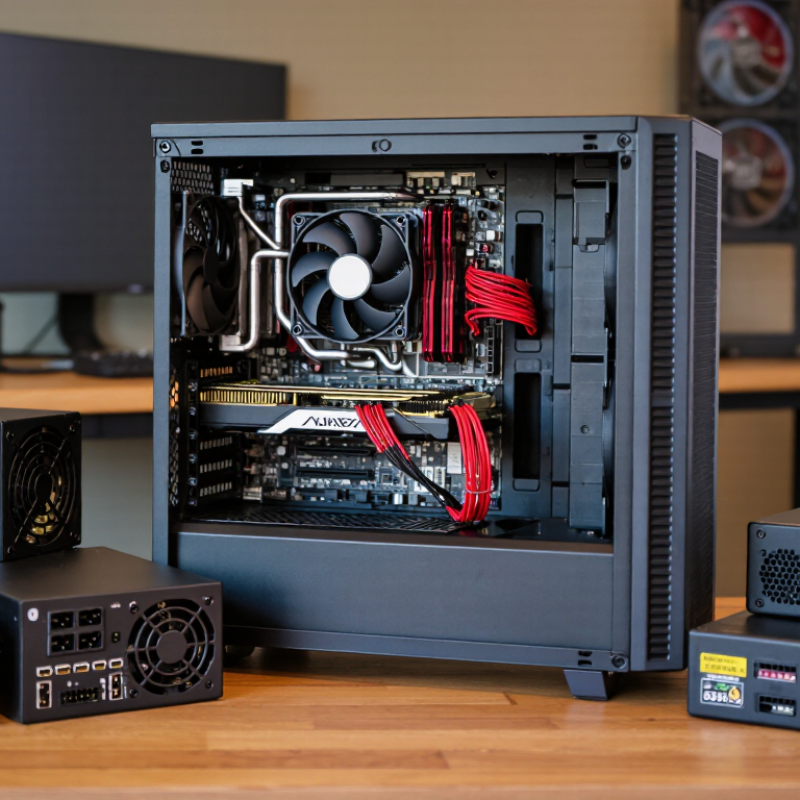
A power supply can meet the wattage requirement and still lack the right plugs. Check for a 24-pin motherboard connector, an EPS 4+4-pin CPU connector, and the GPU’s required PCIe plugs. Also count SATA power connections for drives and accessories. PCI-SIG’s PCI Express 5.0 documentation rates the 12VHPWR connector for up to 600 W. That does not mean every graphics card requires it. Match the card’s socket and power guidance to the PSU’s native cables. Watch the bend near the side panel.

Physical fit matters. The ATX design specification sets a 150 × 86 mm PSU face, but unit depth varies. Measure the case bay and allow space for plugs and cable turns. SFX units are smaller, but the case must support that form factor, sometimes with an adapter bracket. Paper measurements can be easy to misread. Check clearance around drive cages and radiators, too.

Check the PSU’s electrical standard and cable set. The ATX 3.0 Power Supply Design Guide specifies short-duration power-excursion requirements for handling brief load spikes. Modular cables are not universally interchangeable, even when their sockets look identical. Use only cables confirmed for that exact PSU model. Check the motherboard’s CPU power socket count as well. An EPS plug is not a PCIe plug. I still recheck this. One pinout mistake can damage hardware.

How to Choose the Right Power Supply?

Check connector types, form factor, and compatibility before choosing a power supply.

Common connectors have different pin counts: the motherboard connector typically has 24 pins, CPU power uses 4 or 8 pins, PCI Express power uses 6 or 8 pins, SATA power has 15 pins, and peripheral power has 4 pins. Check your components’ manuals and the power supply specifications to confirm connector type and compatibility; pin count alone does not guarantee compatibility.

Evaluate Protection Features, Reliability, and Warranty

When choosing a power supply, check its protection list, not just its wattage or efficiency rating. Look for overvoltage, undervoltage, overcurrent, overload, short-circuit, and overtemperature protection. These safeguards help limit damage when a component fails or cooling is blocked. Confirm the manufacturer documents them clearly; a vague “full protection” claim is hard to assess. Small print matters.

Reliability also depends on operating conditions. A unit running near its maximum output in a warm, dusty case may age faster than one with sensible headroom and clear airflow. Uptime Institute’s 2024 Annual Outage Analysis found that 54% of respondents’ most recent significant outages cost more than $100,000. That figure covers data-center outages broadly, not power supplies alone, but it shows why dependable power deserves scrutiny. Warranty length can signal confidence, yet it cannot replace clear coverage terms, accessible service, and a sound return process. Read the exclusions. A long warranty is not always a simple one. I’d compare the protection documentation and warranty conditions before paying extra for a premium efficiency label; that trade-off is easy to overlook.

How to Choose the Right Power Supply? — Evaluate Protection Features, Reliability, and Warranty

Evaluation Area What to Check Why It Matters Practical Buying Guidance
Over-voltage protection (OVP) Confirm that the specifications list OVP and that independent testing verifies shutdown when voltage exceeds safe limits. Helps protect connected components from excessive output voltage. Prefer a unit with documented OVP testing, not just an unverified feature list.
Under-voltage protection (UVP) Look for UVP on the main output rails and check whether testing confirms the protection works correctly. Can shut the supply down if an output voltage falls outside its intended operating range. Treat UVP as part of a complete protection set; it does not replace other protections.
Over-current protection (OCP) Check whether OCP is provided and whether the supply uses single-rail or multi-rail protection. Limits excessive current. Multi-rail designs may apply separate current limits to different outputs. Either design can be suitable; look for clear specifications and credible test results.
Over-power protection (OPP) Verify that OPP is listed and that the unit shuts down safely when its output exceeds its intended capacity. Helps prevent operation beyond the supply’s rated power limits. Choose capacity for the system’s expected load rather than relying on OPP as extra usable capacity.
Short-circuit protection (SCP) Look for SCP coverage across the outputs and independent tests of short-circuit behavior. Helps limit damage if an output is shorted. Prefer documented protection and safe shutdown behavior.
Over-temperature protection (OTP) Check whether OTP is specified and whether testing confirms shutdown at excessive internal temperature. Helps protect the supply when cooling is inadequate or temperatures become unsafe. Also ensure the case has adequate airflow; OTP is a safety measure, not a substitute for cooling.
Independent reliability testing Seek load, voltage-regulation, ripple, temperature, and protection testing from a technically detailed, independent review. Specifications alone do not show how consistently a unit performs under real load. Give more weight to measured results than to marketing claims or efficiency labels alone.
Operating temperature and noise Review the stated operating-temperature conditions and noise measurements at different load levels. Heat and fan behavior can affect comfort and long-term operating conditions. Compare results at similar loads and temperatures; a quiet fan profile should not come at the cost of excessive heat.
Capacity and transient loads Match the rated output to the system’s components and check credible testing for brief load changes, especially from the graphics card. A suitable capacity helps maintain stable operation during changing system demand. Allow reasonable headroom, but avoid choosing a unit based only on an oversized wattage rating.
Warranty length Compare the written warranty period and confirm when coverage begins and what proof of purchase is required. A longer warranty can indicate greater manufacturer confidence, but does not by itself prove product quality. Compare warranty terms alongside independent test results; warranty periods vary by product and seller.
Warranty coverage and service Read the exclusions, return or repair process, shipping responsibilities, and whether coverage transfers to a later owner. The practical value of a warranty depends on its conditions and how service is handled. Choose clear, accessible terms and keep the receipt and product serial information.